Photo Frame Infographic Arrow: A Versatile Tool for Visual Storytelling
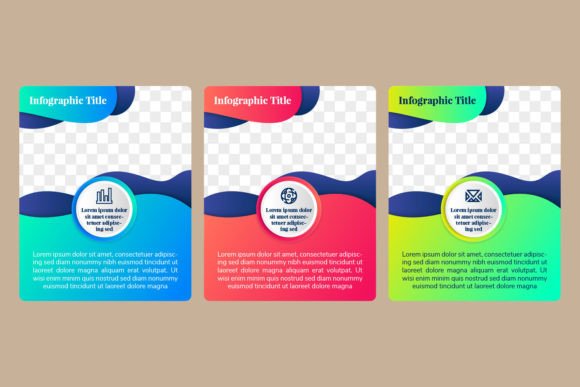
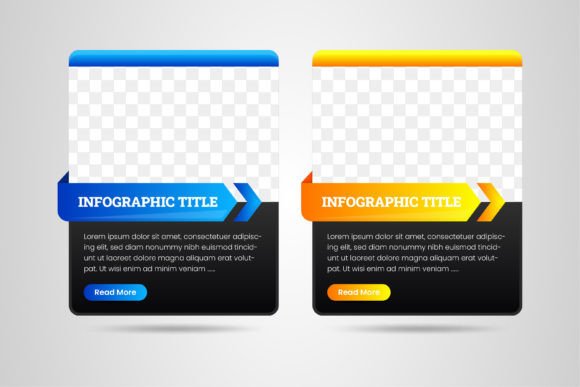
When you need to present a sequence of ideas, a step-by-step process, or a clear comparison, the right visual framework can make all the difference. The Photo Frame Infographic Arrow template is a design resource built around four distinct options or steps, arranged in a vertical layout with space for photos. It’s not just another vector pack—it’s a flexible system for turning abstract concepts into something people can see, follow, and remember. Whether you are crafting a workflow diagram, an info chart, or a web design element, this template offers a structured yet editable foundation.
What makes this template stand out is how it combines a clean, black background with bright gradients and arrows that naturally guide the eye from one point to the next. Each of the four frames can hold a photo, an icon, or a short label, making it easy to create a narrative without overwhelming the viewer. The high resolution (300dpi) and 100% vector format mean you can scale it for everything from a presentation slide to a printed brochure without losing quality. The included AI, EPS, JPG, and SVG files give you flexibility across different software, and the editable text, shapes, and colors let you adapt the template to your brand or message.
Business Process Mapping
Imagine you’re a project manager explaining a four-stage approval workflow to a new client. A dense paragraph of text rarely sticks, but a vertical infographic with arrows connecting each step can turn confusion into clarity. The Photo Frame Infographic Arrow template lets you place a relevant photo inside each frame—maybe a team meeting, a document, a handshake, and a final product shot. The arrows then show the direction of the process: initiate, review, approve, launch. Because the layout is vertical, it fits naturally on a single slide or a half-page section of a proposal. You can quickly edit the text to match your terminology, tweak the gradient colors to match company branding, and export a crisp JPG or SVG for your presentation deck. The editable shapes also let you adjust arrow thickness or frame size if your workflow has uneven emphasis on certain steps.
Marketing Funnel or Customer Journey
Marketers often need to visualize how a customer moves from awareness to purchase and beyond. A four-step vertical infographic with photo spaces is ideal for highlighting key touchpoints. You might place a stock photo of a social media ad in the first frame, a landing page screenshot in the second, a checkout screen in the third, and a testimonial shot in the fourth. The arrows act as directional cues, reinforcing the linear flow. Because the template includes both JPG and editable vector files, you can use it in an email newsletter, embed it in a blog post, or print it as a poster for a strategy meeting. The black background helps the photos and text pop, making the whole graphic feel more premium than a typical white-background chart.
Educational Timelines
Teachers, trainers, and content creators frequently need to explain historical events, project phases, or learning milestones. The vertical layout of the Photo Frame Infographic Arrow works especially well for timelines that don't have a natural horizontal space—think mobile-first web design or Instagram carousels. Each frame can represent a year, a unit, or a key discovery. The arrow between them creates a sense of progression. You could even replace the photos with icons or simple illustrations if you don't have real images. The vector nature of the template makes it easy to add or remove elements without breaking the design. For a training manual, you might use the template to outline four core competencies: theory, practice, assessment, and certification. The gradients add energy, while the black background keeps the focus on the content.
Product Feature Highlights
When launching a new product, you often want to showcase four standout features. Instead of listing them in bullet points, use the Photo Frame Infographic Arrow to give each feature its own visual space. The photo frame could hold a close-up shot of the feature in action, and the arrow points to the next benefit. This sequential presentation encourages the viewer to consider each feature in turn. Because the template is fully editable, you can resize the text boxes to add brief descriptions or keep them minimal. The 300dpi resolution ensures that, if you later decide to print a poster for a trade show booth, the graphic will remain sharp. The AI and EPS files also allow you to tweak the arrow curvature if you prefer a softer flow between steps.
Freelance Graphic Designers
For a designer juggling multiple client projects, having a ready-made vector template like this one can save hours of setup time. Instead of building frames and arrows from scratch, you import the SVG or EPS directly into your design software and customize. The editable text, shapes, and color means you can repurpose the same layout for a healthcare client one week and a tech startup the next—just change the photos and wording. The black background also simplifies contrast adjustments; you don't have to worry about clashing with white elements from other parts of the design. One caution: the template uses gradients that might not align with every brand identity, but since they are vector and editable, you can replace them with solid colors or more subtle gradients as needed.
Small Business Owners
If you run a small business and need to explain your service package or product range to customers, this infographic template is a clean way to do it without hiring a professional designer. The included JPG file lets you quickly drop in your own images and edit the text in a tool like PowerPoint or Canva if you're not comfortable with vector software. The four-step structure naturally limits how much you try to communicate, which forces clarity. You could outline the four benefits of your subscription plan, four steps in your consultation process, or four reasons customers choose you. Because the template is high-resolution, you can use the final graphic in digital ads, on your website's homepage, or in a printed flyer. The only limitation is the fixed number of steps—four—so if your process has three or five stages, you would need to adjust the layout manually.
Corporate Trainers and HR Teams
In internal communications, the Photo Frame Infographic Arrow can help explain a four-step procedure, like a new expense reporting process or a safety protocol. Adding a photo of the actual tool or a staff member performing the step makes the procedure feel more concrete. The arrows remove ambiguity about the order of actions. For an onboarding manual, you could use the frames to illustrate "I.D. Badge > System Login > Buddy Assignment > First Week Goals." The black background works well in a dark-themed slide deck, which many companies now use for presentations to reduce eye strain. If you need to reproduce the graphic in a monochrome context, you can remove the gradient fills and use outline-only arrows.
Content Creators and Bloggers
Visual content drives engagement, and a four-step infographic is a proven format for social media posts. Using the Photo Frame Infographic Arrow, you can create an Instagram carousel slide where each frame is one image swipe. The vertical layout matches mobile screen dimensions naturally. You can film a short video explaining the step-by-step concept and use the infographic as a title card or end slate. The SVG file is lightweight for web use, and the JPG works as a quick preview. Since the template includes a space for a photo, you can use original images from your own shoots, which strengthens your personal brand. The only thing to watch is the word count inside each frame—keep text very brief, or the design feels crowded. The template's gradients and black background give a modern feel that fits lifestyle, tech, or business niches.
Adaptability to Different Brand Styles
The Photo Frame Infographic Arrow comes with a black background and gradient arrows. While this looks sleek, it may not suit every brand palette. If your brand uses a lot of white space and pastels, you'll need to edit the background color. The vector files (AI, EPS) make this straightforward, but if you are using the JPG version, you cannot change the background without masking. Always check that the file format you plan to edit matches your skill level and tools. The template's strength is its structure, not its default colors, so plan to customize.
Number of Steps
This template is built for exactly four steps or options. If your content requires three, five, or six steps, you will need to either remove or duplicate frames and adjust the arrow paths. The vector shapes are editable, so you can delete a rectangle and reconnect the arrows, but that requires some comfort with vector editing. For users who need an off-the-shelf solution for an exact four-step workflow, it's perfect. For others, be prepared for a small amount of manual tweaking.
Image Quality and Space
Each frame provides a designated photo area. The resolution is high at 300dpi, which means your photos will look sharp. However, the frame proportions may not match every photo's aspect ratio. You may need to crop your images before placing them. The template includes a clipping mask or frame shape—depending on the software—so you can drag images in directly, but be mindful of focal points. If you place a photo where the main subject is cut off, the infographic loses impact. Test a few images first to see how they sit inside the frames.
Scale and Use Cases
Because the template is 100% vector, you can scale it up for a large poster or down for a web banner without loss. However, the black background may use a lot of ink if printed in large quantities. Consider whether you'll use it primarily on screen or in print. The gradients also look great on monitors but might come out differently on matte paper. Request a proof if printing commercially. The SVG file works well for responsive web design; you can embed it directly in HTML without loading a heavy image.
Strengths and Potential Limitations
The main strength of the Photo Frame Infographic Arrow is its clean, organized layout that guides the viewer through a sequence. The vertical orientation is highly versatile, fitting into many formats from slides to social posts. The editable vector files give you total control, and the inclusion of both AI and EPS ensures compatibility with major design software. The photo spaces add a personal touch that pure icon-based infographics often lack. The black background adds a sense of sophistication and helps colored elements stand out.
A potential limitation is the fixed four-step structure. If your topic naturally divides into two or three main points, you may end up stretching to fill the fourth frame. In that case, you can disable or remove one frame and use a three-arrow layout instead, but that requires extra work. Also, the template does not include placeholder icons or stock photos, so you are responsible for sourcing your own visuals. Users who are not familiar with vector editing software (Illustrator, Inkscape, Affinity Designer) may find the AI and EPS files intimidating; the JPG is a fallback but not editable.
Another observation: the arrows are straight or slightly curved—depending on the variant—which works best for linear processes. If your content involves feedback loops or parallel tracks, this template's simple directional flow may not capture the complexity. It's best suited for step-by-step, sequential information where each stage builds on the last.
Final Thoughts on Using the Photo Frame Infographic Arrow
In an age where attention spans are short, a well-structured visual can communicate more than paragraphs of text. The Photo Frame Infographic Arrow template gives you a head start by providing a clear vertical framework with photo spaces and directional arrows. Whether you are mapping a workflow, explaining a journey, or highlighting features, the template's four-step layout forces you to prioritize and simplify. The editable vector files ensure you can tweak every detail to match your context. By focusing on real-world use cases—from business proposals to educational content to marketing assets—you can get the most out of this resource without needing to be a design expert. Always test the layout with your actual content, crop your photos thoughtfully, and adjust colors to align with your brand. With those considerations in mind, this template becomes a go-to tool for clear, engaging visual communication.